Follow these steps to enroll a group of users through the Manage Credit and Enrollment screen.
Note: If there is a prerequisite on the resource, an enrollment through Manage Credit and Enrollment will override the prerequisite.
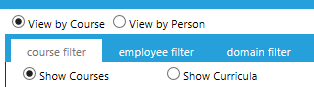
Go to People > Manage Credit and Enrollment, in the administrative menu, and select View by Course on the Filters and Options pop-up (this is the default).
Use the Course filters to select the course as described on the Select a Course to Manage help screen.
In the Results grid, select the individual checkbox next to each user you want to enroll. If you want to enroll all of the selected audience, check the Checkbox located to the left of the Name column in the header row of the Results grid.
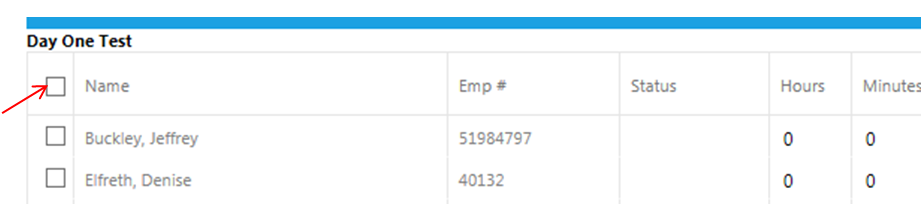
Tip: Those users indicated in gray with a blank or Not Started status do not currently have the course on their Learning Plan. They are not enrolled in the course. You should only be enrolling users with a “Complete” status (for courses that allow multiple enrollments) or a blank status. All other statuses (including expired and expiring) signify that the employee is already enrolled.
Select one of the following from the Actions drop down menu.
If you would like for employees to receive an email notification about this enrollment, select the Send Notification checkbox in the toolbar.

Click on Set Defaults in the top toolbar to set the same completion deadline for all selected employees. This will open the Set Defaults pop-up window.
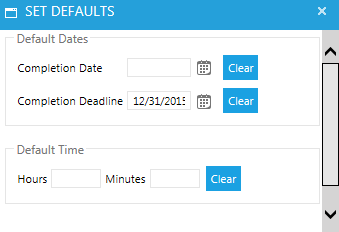
Enter the completion deadline. For enrollment actions, the Completion Deadline field is the only Default information that should be set.
Click Apply Defaults. The completion deadline should now appear in the selected rows of the Results grid.

Note: The Completion Date field will automatically populate with the current date. Just ignore this. This date will not be visible on any screen.
Click the Save button. You will see a confirmation screen. If the information is correct, click Confirm. If you need to make any changes, click Cancel. Cancel will take you back to the previous screen so that you can make any necessary changes.

Once you click Confirm, you will be redirected back to the results grid. All of the selected user’s name(s) should now be in green, confirming that they are now enrolled in the selected course.
